
How to highlight text in a screenshot
A highlight is the quickest way to point someone at one sentence in a screenshot. Shotlighter finds the lines of text in your image, so one drag gives you a straight highlight over whole words instead of a wobbly marker stroke.
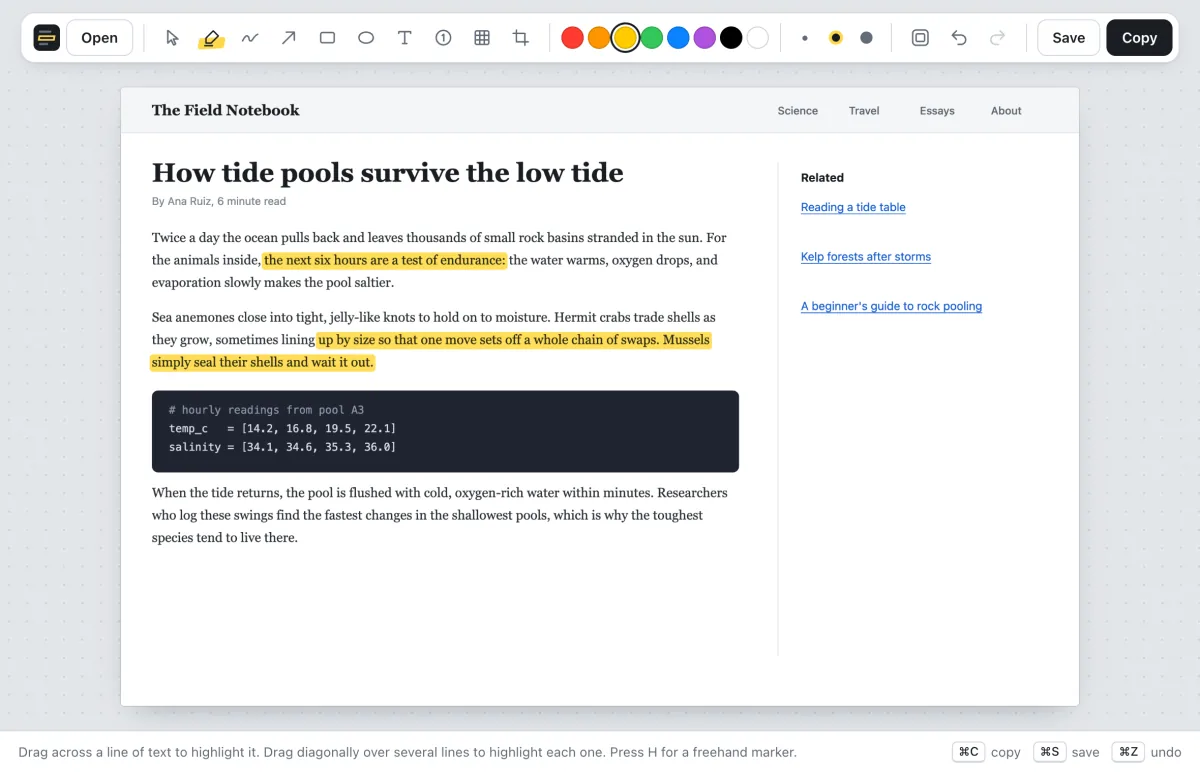
Highlight a line of text
- Copy a screenshot to your clipboard. On a Mac, press ⌘⌃⇧4 (Command-Control-Shift-4) and drag over the area you want. On Windows, press Win+Shift+S. There are more options in how to take a screenshot on Mac or Windows.
- Paste it into Shotlighter with ⌘V, or Ctrl+V on Windows. You can also drop an image file onto the page, or click Open.
- Drag across the text. The highlighter is already selected. Start at the first word and let go after the last one. The highlight snaps to the height of the line and to whole words, so you don't need a steady hand.
- Copy or save the result. Press ⌘C (Ctrl+C) and paste it into Slack, an email or a doc, or press ⌘S (Ctrl+S) to save a PNG.
Highlight several lines
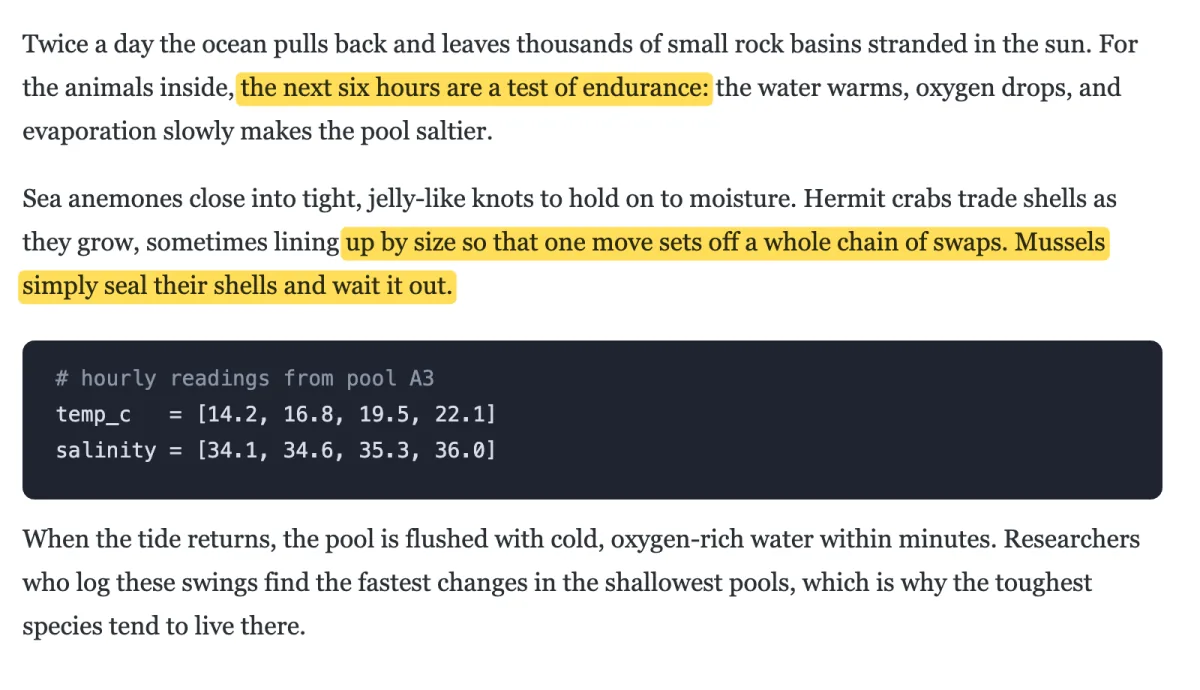
Drag from the first word to the last word, the same way you'd select text in a document. Shotlighter highlights each line separately, so the result looks like a text selection rather than one big yellow block.
Change the color
Yellow is the default. Press a number key from 1 to 8, or click a color in the toolbar, to switch. Press the same number again for a darker shade, and once more for a lighter one. Green or blue can read better than yellow on a pale yellow or beige page.
Use a freehand marker
For things that aren't text, like a line on a chart or an icon, press H again (or click the highlighter a second time) to switch to a freehand marker. Press H once more to go back to snapping to text. [ and ] make the marker thinner or thicker.
Fix a mistake
Press ⌘Z (Ctrl+Z) to undo, as many times as you need. To move or remove a single highlight, press V for the select tool, click the highlight, and then drag it or press Delete.
Tips for a highlight people notice
- Highlight the answer, not the paragraph. A few words stand out; a whole block of yellow doesn't.
- Crop first if the text is small in a big screenshot, so the reader doesn't have to hunt for it. See how to crop a screenshot.
- Add a short label when the highlight needs explaining, like "this changed" or "use this one". See how to add arrows and text.
- Dark mode works too. On a dark background the highlight becomes see-through, so light text stays readable.
More guides
- How to blur or redact private info in a screenshotPixelate or black out names, emails, keys and card numbers.
- How to add arrows, boxes and text to a screenshotPoint at exactly what you mean.
- How to make step-by-step instructions with screenshotsNumbered markers that count up on their own.
- How to crop a screenshot and add a backdropTrim to what matters and make it look finished.
- How to take a screenshot on Mac or WindowsEvery shortcut, including copying straight to the clipboard.