
How to blur or redact private info in a screenshot
Before a screenshot goes into a support ticket, a public channel or a bug report, cover anything that identifies you or opens an account. Shotlighter does it in your browser, so the unredacted image is never uploaded anywhere.
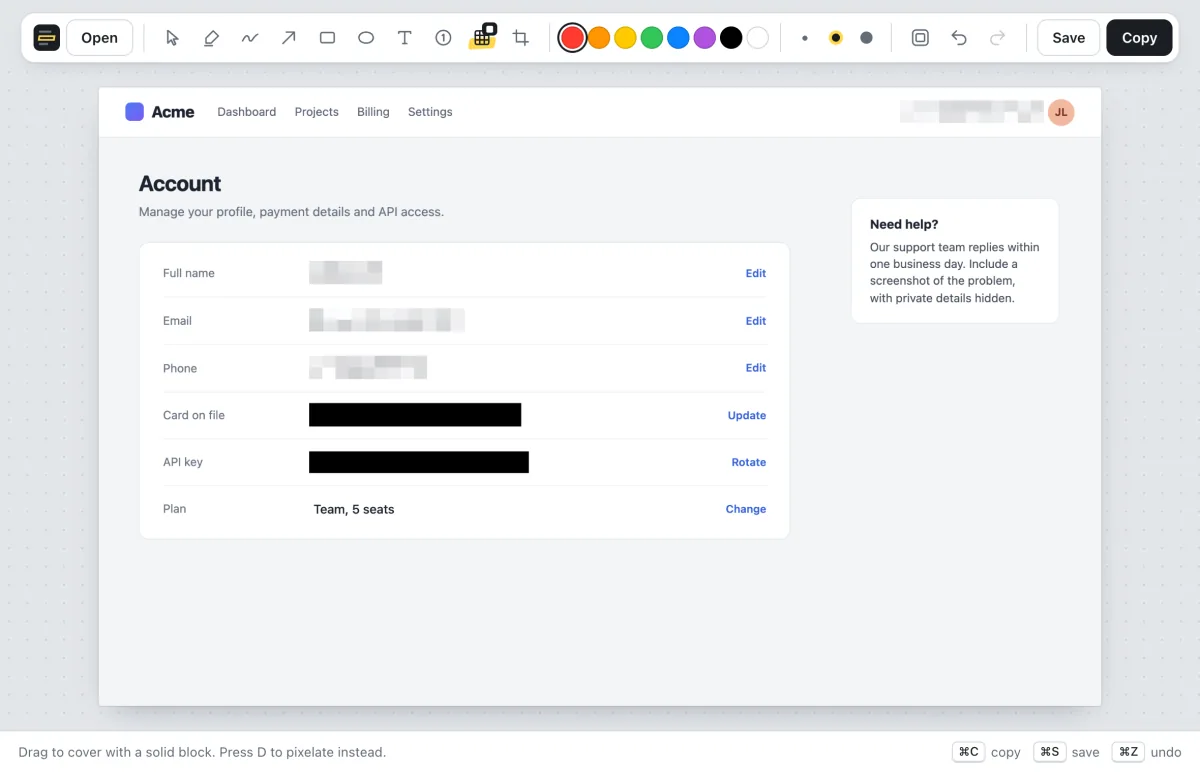
Redact part of a screenshot
- Paste your screenshot into Shotlighter with ⌘V (Ctrl+V on Windows), or drop the image file onto the page.
- Press D for the redact tool, or click the grid icon in the toolbar.
- Drag over what you want to hide. It's pixelated as soon as you let go. Repeat for each detail.
- Switch to solid blocks when you need them. Press D again to swap between pixelation and solid black. Areas you've already covered keep their style.
- Copy or save with ⌘C or ⌘S (Ctrl+C or Ctrl+S).
Pixelate or black out?
Pixelation keeps the screenshot looking tidy. It's obvious that something was hidden, but it doesn't pull the eye the way a black bar does. Shotlighter uses large blocks with added noise, so there's very little left to work from.
Solid blocks leave nothing at all. Use them for passwords, API keys, one-time codes, card and account numbers, and anything else that would cause real trouble if someone worked it out.
Avoid a light blur. A gentle blur over large text can often still be read, and there are tools that recover text from finely pixelated images. If you're using another editor, cover the text completely.
What to check before you share
- Names, email addresses, phone numbers and profile photos
- Your account name in the corner of the app or browser, which is easy to miss
- Passwords, API keys, access tokens and one-time codes, including ones inside URLs
- Card, bank, order and tracking numbers, and home or delivery addresses
- Notifications, other open tabs and bookmarks that say more than you meant to
- Other people's names and messages in chat screenshots
- QR codes and barcodes, which can contain links, tickets or account details
What you hide stays hidden
When you copy or save, Shotlighter draws a brand-new PNG from exactly what you see. The file has no layers and no copy of the original inside it, so covered text and cropped-off areas can't be recovered from it.
That isn't true of every tool. In 2023 a flaw known as aCropalypse meant that some screenshots cropped with the Google Pixel's Markup tool or the Windows Snipping Tool still contained the parts that had been cut away.
Tips
- Cover a little more than the text, so the edges of letters don't peek out.
- Look for repeats. Your email might appear in the page header and in a form field; redact every copy.
- Crop instead when a whole area isn't needed. It's cleaner than a row of blocks. See how to crop a screenshot.
- Check the final image after pasting it, at full size, before you send it.
More guides
- How to highlight text in a screenshotClean, straight highlights that snap to the text.
- How to add arrows, boxes and text to a screenshotPoint at exactly what you mean.
- How to make step-by-step instructions with screenshotsNumbered markers that count up on their own.
- How to crop a screenshot and add a backdropTrim to what matters and make it look finished.
- How to take a screenshot on Mac or WindowsEvery shortcut, including copying straight to the clipboard.